Chat
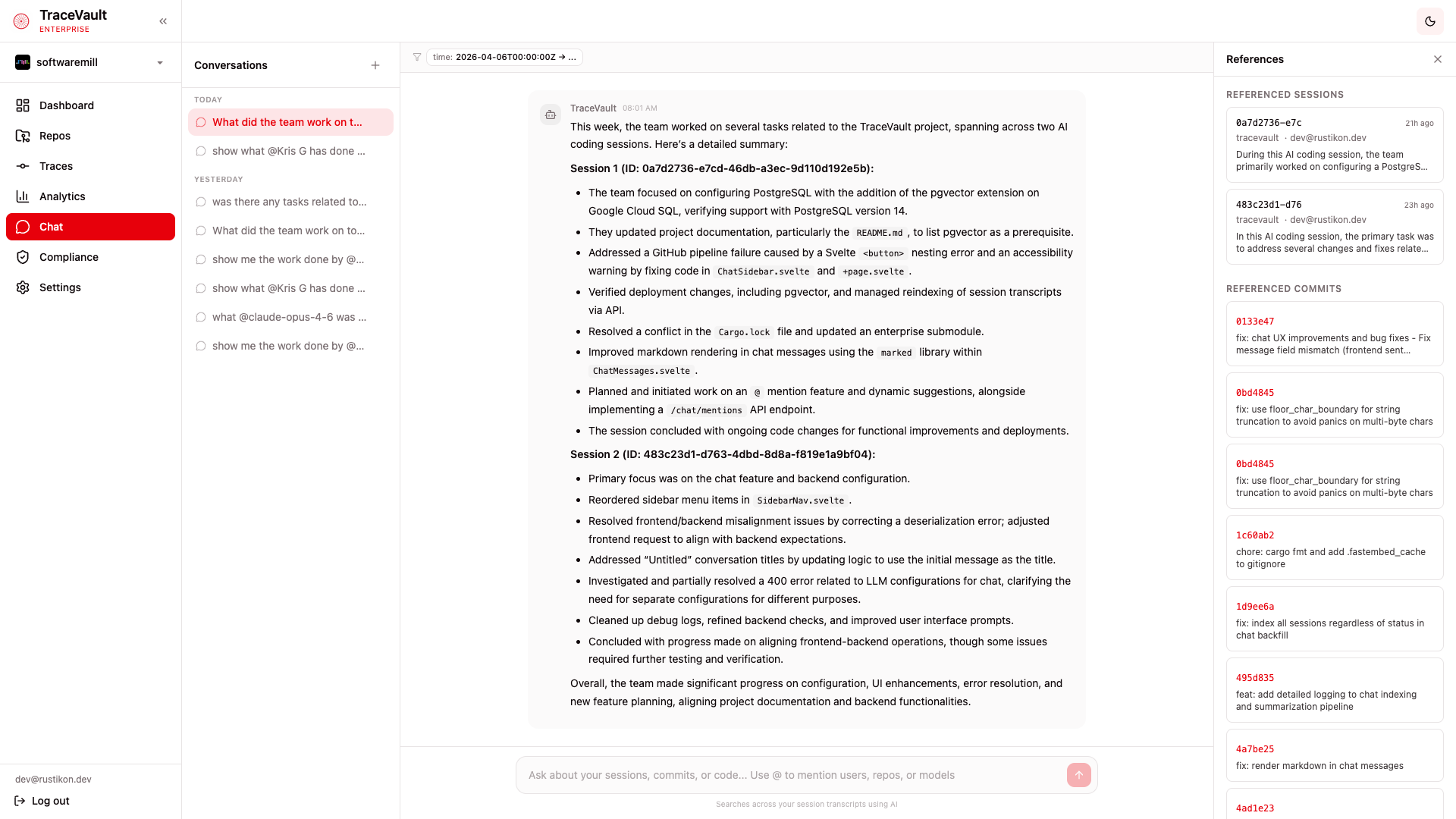
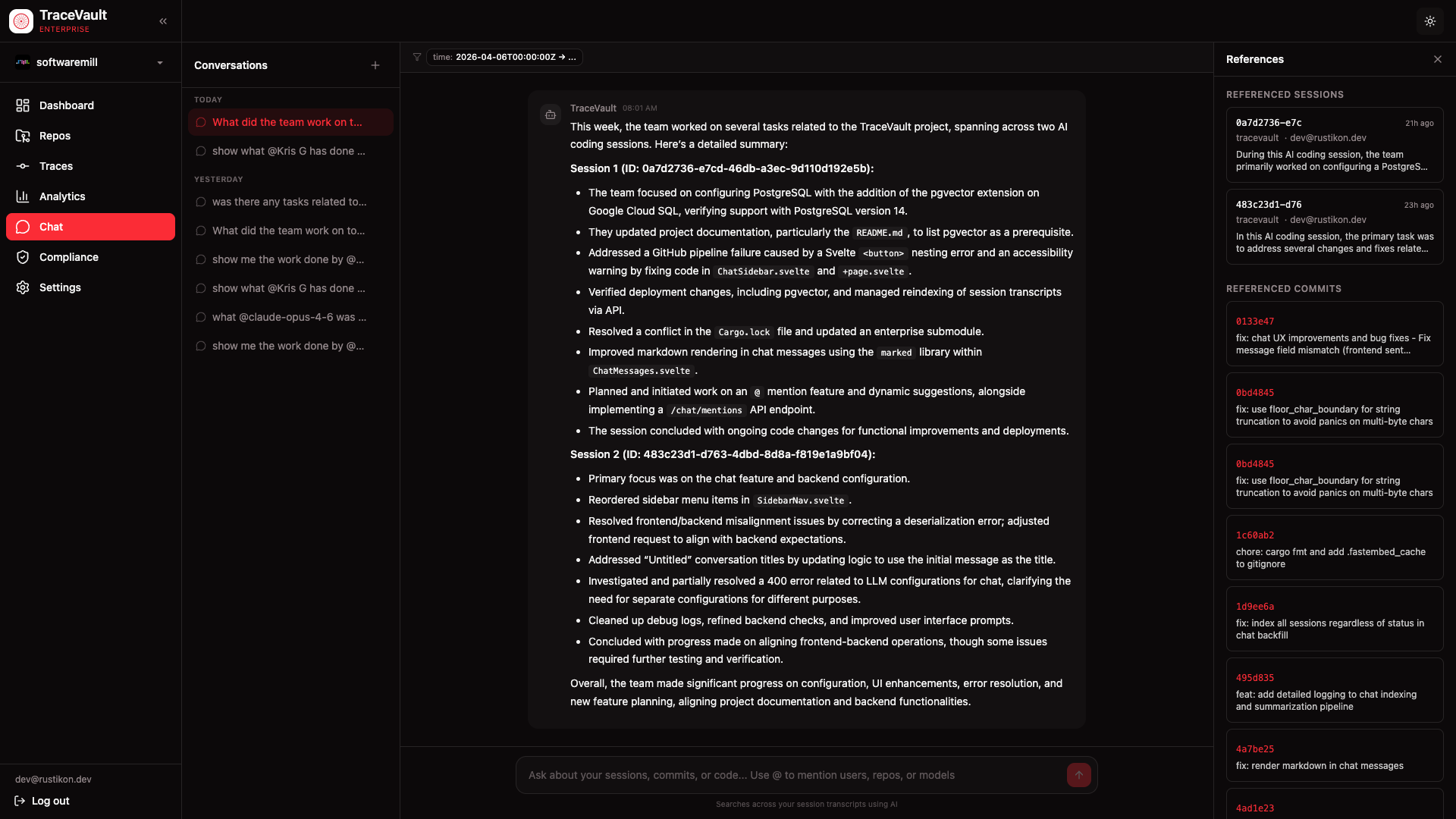
Chat provides a natural-language interface for searching and exploring AI coding sessions. Instead of navigating filters and tables, team members ask questions in plain English — "What did the team work on today?", "Who made auth changes last month?", "Show me sessions using Claude Opus" — and get answers grounded in actual session transcripts and commit history.
Why It Matters
TraceVault captures a wealth of data: full session transcripts, tool invocations, file changes, and commit attributions. But finding specific information across hundreds or thousands of sessions requires knowing which filters to apply and which pages to check. For engineering managers reviewing team activity, developers searching for prior work, or auditors investigating specific changes, this can be time-consuming.
Chat removes that friction. A manager can ask "what did the team ship this week?" and get a synthesized answer referencing specific sessions and commits — without needing to know the exact repository, author, or date range. The system extracts structured filters from natural language, performs semantic search over session embeddings, retrieves relevant transcript excerpts, and generates a grounded response with direct links to source sessions.
Prerequisites
Chat requires an LLM provider to be configured in your organization's settings. Navigate to Settings > Chat LLM to set up:
- Provider — Choose between Anthropic or OpenAI
- API Key — Your provider's API key (stored securely, shown only as "Configured" or "Not set")
- Model — A specific model to use, or leave blank for the provider's default
- Base URL — Optional custom endpoint for self-hosted or proxy deployments
- Auto-summarize — Toggle to enable automatic session summarization for search indexing
The Chat LLM is configured separately from the Stories LLM, allowing organizations to use different models or providers for each feature.
How It Works
Conversations
The left sidebar lists all your conversations grouped by time — Today, Yesterday, Last 7 days, Older. Click any conversation to resume it, or use the + button to start a new one. Conversations are persistent and per-user, so you can maintain ongoing threads of investigation — following up on previous questions, narrowing results, or exploring related topics across multiple exchanges. Titles are auto-generated from the first message.
Asking Questions
Type your question in the input field at the bottom of the chat area. Natural language works best — the system understands queries like:
- "What did the team work on today?"
- "Show me recent auth changes"
- "Who worked on the API last week?"
When you send a message, TraceVault extracts structured filters from your question (user, repository, time range, model), performs semantic search over indexed session transcripts, and generates a response grounded in actual session data.
@Mentions
Use @ in the input field to mention specific entities and narrow your search precisely:
- @users — Filter by a specific team member (shown with a blue badge)
- @repos — Filter by repository (shown with a green badge)
- @models — Filter by AI model, e.g. claude-opus-4-6 (shown with an amber badge)
As you type after @, an autocomplete dropdown appears with matching suggestions. Mentions are rendered as colored pills in the conversation, and they override the LLM's filter extraction to ensure exact matching — so @Kris G always filters by that user, even if the name could be interpreted differently.
Filter Pills
When the system extracts structured filters from your query — such as a time range, user, repository, or model — they are displayed as pills above the message area. This lets you see exactly how your question was interpreted.
References Panel
When a response references specific sessions or commits, a References panel appears on the right side of the screen. It contains:
- Referenced Sessions — Each card shows the session's external ID, how long ago it occurred, the repository name, author, and a summary snippet. Click any card to navigate directly to the full session detail page with transcript, tool calls, and file changes.
- Referenced Commits — Each entry shows the commit SHA and message. Click to navigate to the session that produced that commit.
This panel provides direct traceability from a natural-language answer back to the source material, so you can verify claims and dive deeper into any referenced session or commit.
Key Concepts
| Term | Meaning |
|---|---|
| Conversation | A persistent chat thread between a user and TraceVault, scoped to the user and organization. |
| @Mention | Typing @ followed by a user, repository, or model name to precisely filter search results. |
| Filter Extraction | The process of converting a natural-language question into structured search parameters (user, repo, time range, model). |
| References Panel | A sidebar showing sessions and commits cited in the response, with direct links to their detail pages. |
| RAG Pipeline | Retrieval-Augmented Generation — the system retrieves relevant data from the database and uses it to ground the LLM's response in actual session content. |
| Session Indexing | Automatic summarization and embedding of completed sessions, enabling semantic search across transcripts. |