Repositories
Repositories are the organizational unit for tracing AI-assisted development. Each registered repo connects a Git codebase to TraceVault's session capture, policy enforcement, and code attribution — giving teams per-project governance control.
Why It Matters
Organizations rarely govern every codebase the same way. A payment processing service may need strict policy enforcement and mandatory signing, while an internal tool needs only basic tracking. Repositories let you configure governance at the project level.
The code browser adds a unique capability: browsing any file with AI attribution overlaid on each line. Combined with story generation, teams can understand not just what code exists, but how and why it was written.
How It Works
Registration and Sync
Register a repository via the CLI with tracevault init, which sets up hooks for session capture and commit tracking. Optionally configure a GitHub SSH URL and deploy key to enable server-side cloning, which powers the code browser and attribution features.
Policy Enforcement
Each repository can have policies governing AI tool usage — requiring certain tools to be called, or warning when tools are used excessively on specific file types. Policies can block pushes or issue warnings, with configurable severity levels.
Code Attribution
When code is committed, TraceVault matches changed lines against recorded AI sessions. The code browser displays this attribution inline: which lines were AI-generated, which session produced them, and the confidence level.
Pages
Repository List (/repos)
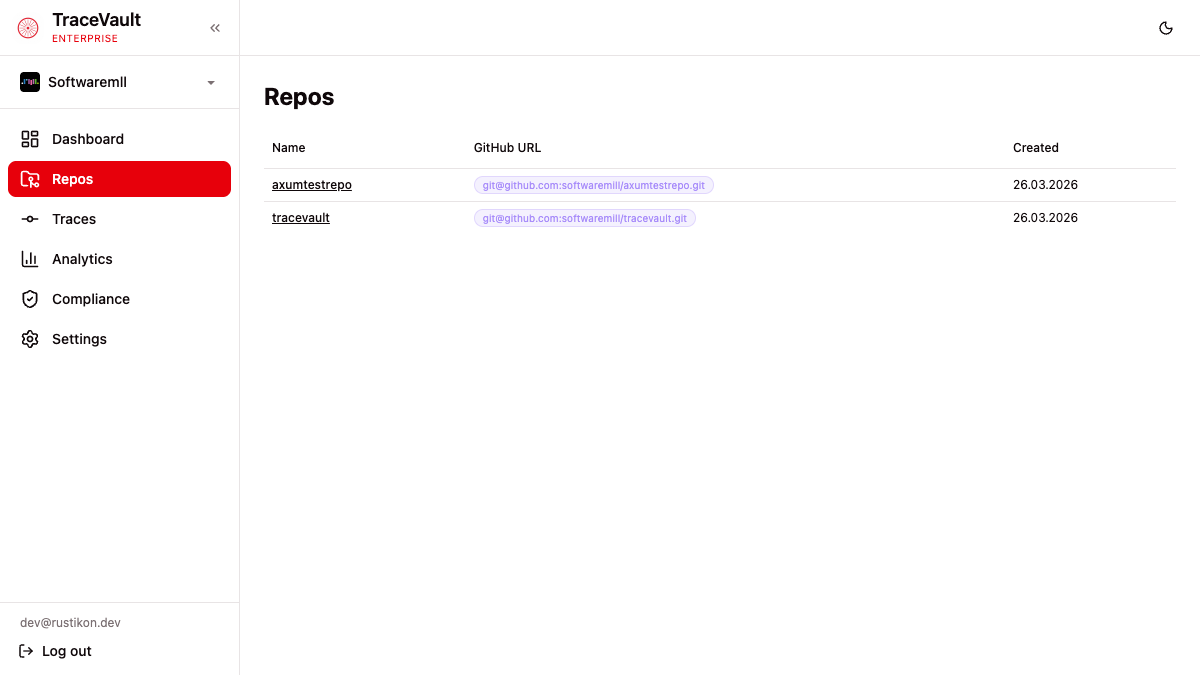
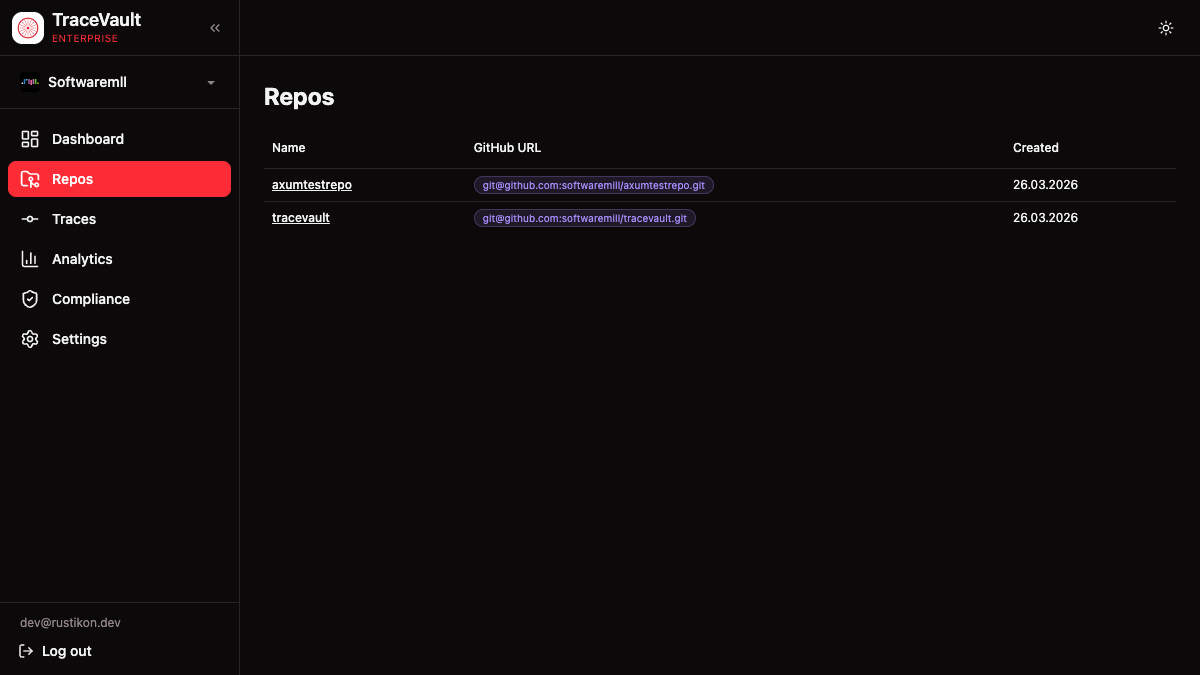
All registered repositories with name, GitHub URL, and creation date. If none are registered, you're directed to the CLI for setup.
Repository Detail (/repos/{id})
Two main sections:
- Policies — Tool-call enforcement policies with name, condition, action (block/warn), severity, and scope. Create new policies from a dialog with condition types, tool names, and file patterns.
- Commits — All commits for this repo with SHA, message, author, branch, linked AI sessions, and files changed. Expandable rows show the full commit message.
Repository Settings (/repos/{id}/settings)
Configure GitHub connectivity, deploy key authentication, and sync status.
Setting Up a Deploy Key
To enable the code browser and attribution features, TraceVault needs read-only access to your repository via an SSH deploy key. From the settings page:
- Set the repository URL — enter the SSH-format URL (
[email protected]:org/repo.git). - Generate an ed25519 key pair locally:
ssh-keygen -t ed25519 -f tracevault-deploy-key -N "" - Add the public key to GitHub — go to your repo's Settings → Deploy keys → Add deploy key and paste the contents of
tracevault-deploy-key.pub. Read-only access is sufficient. - Paste the private key into TraceVault — copy the contents of the
tracevault-deploy-keyfile into the deploy key field and save.
Once both the URL and deploy key are configured, TraceVault automatically clones the repository. The sync status section shows progress — once it reaches "Ready", you can browse code and trigger manual syncs.
Code Browser (/repos/{id}/code)
Browse the repository's file tree with a branch/tag selector. Open files with syntax highlighting for all major languages.
Story Generation — Click a line number to generate an AI-powered narrative about how that code was produced. The story references relevant commits and sessions with direct links to their trace detail pages.